

Connect email and a verifier
Verentis needs a mailbox to send from and read replies, and a verifier to check addresses before anything is sent.
Choose a provider
Section titled “Choose a provider”| Provider | Best for | Setting in verentis.yaml |
|---|---|---|
| Gmail or Google Workspace | Most teams. Cheap, very deliverable at under 50 emails a day. | channels.email.provider: gmail |
| Microsoft 365 | Teams already on Outlook. | channels.email.provider: microsoft |
| SMTP and IMAP | Any other mailbox (Fastmail, AgentMail, an app password). | channels.email.provider: smtp |
| Instantly | Legacy campaigns. | channels.email.provider: instantly |
Connect Gmail
Section titled “Connect Gmail”- In Google Cloud, create a Desktop OAuth client for the Gmail API.
- In the dashboard, open Settings, then Email provider.
- Paste the Client ID and Client secret under Gmail or Google Workspace, then press Save.
- In a terminal, run
verentis gmail authand sign in once in the browser window it opens. - Run
verentis gmail testto confirm the connection.
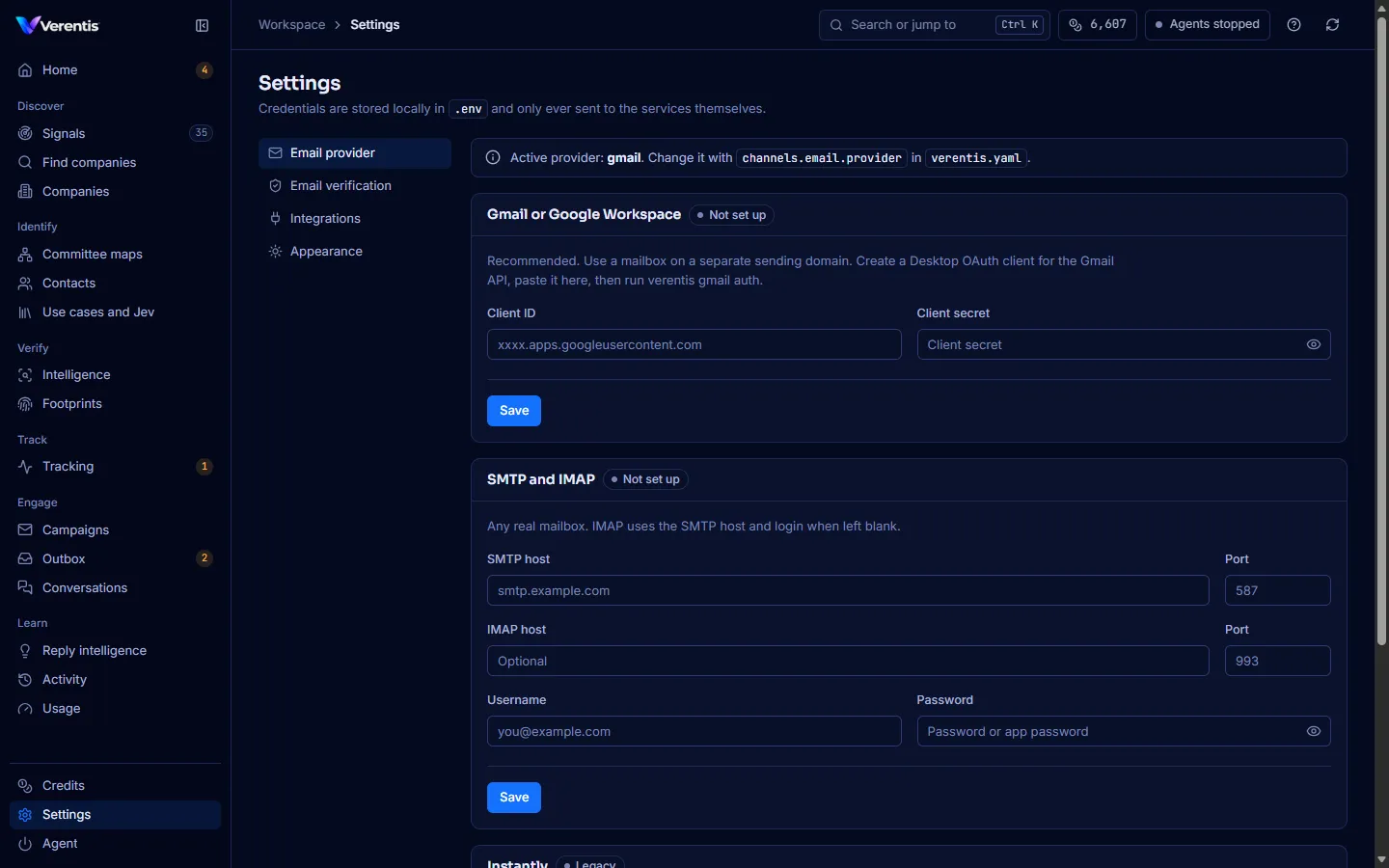
The pill next to Gmail changes from Not set up to Run verentis gmail auth once the client is saved, and to Connected after you sign in. SMTP shows Saved once its password is stored.
Connect Microsoft 365
Section titled “Connect Microsoft 365”- Register an app in Microsoft Entra as described in the repository’s
docs/microsoft365.md. - Set
channels.email.provider: microsoftinverentis.yamland add the app details to.env. - Run
verentis microsoft auth, thenverentis microsoft test.
Connect SMTP and IMAP
Section titled “Connect SMTP and IMAP”- In Settings, Email provider, fill in SMTP host, Port (587), Username and Password.
- Leave IMAP host blank to use the SMTP host, or enter it if it differs.
- Press Save, and set
channels.email.provider: smtpinverentis.yaml.
Add an email verifier
Section titled “Add an email verifier”Verentis learns each company’s address pattern and checks one candidate address with a verifier. Without a verifier, found addresses stay marked guess and are never sent to.
- Open Settings, then Email verification.
- Add at least one key:
- Reoon: 600 free checks a month, the best free tier.
- ZeroBounce: 100 free a month, best for Microsoft 365 and Workspace catch-alls.
- Hunter: 50 free a month, plus a domain pattern lookup.
- Press Save.
Every address is then tagged verified, risky (a catch-all domain), guess or invalid. Only verified addresses are sent to by default.
Approval is on by default
Section titled “Approval is on by default”With Gmail, Microsoft 365 or SMTP, every outgoing email waits in the Outbox until you approve it. When you trust the drafts, you can set channels.email.require_approval: false in verentis.yaml.