
Search, shortcuts and the tour
The command palette
Section titled “The command palette”Press Ctrl + K (Cmd + K on a Mac), or click Search or jump to in the top bar.
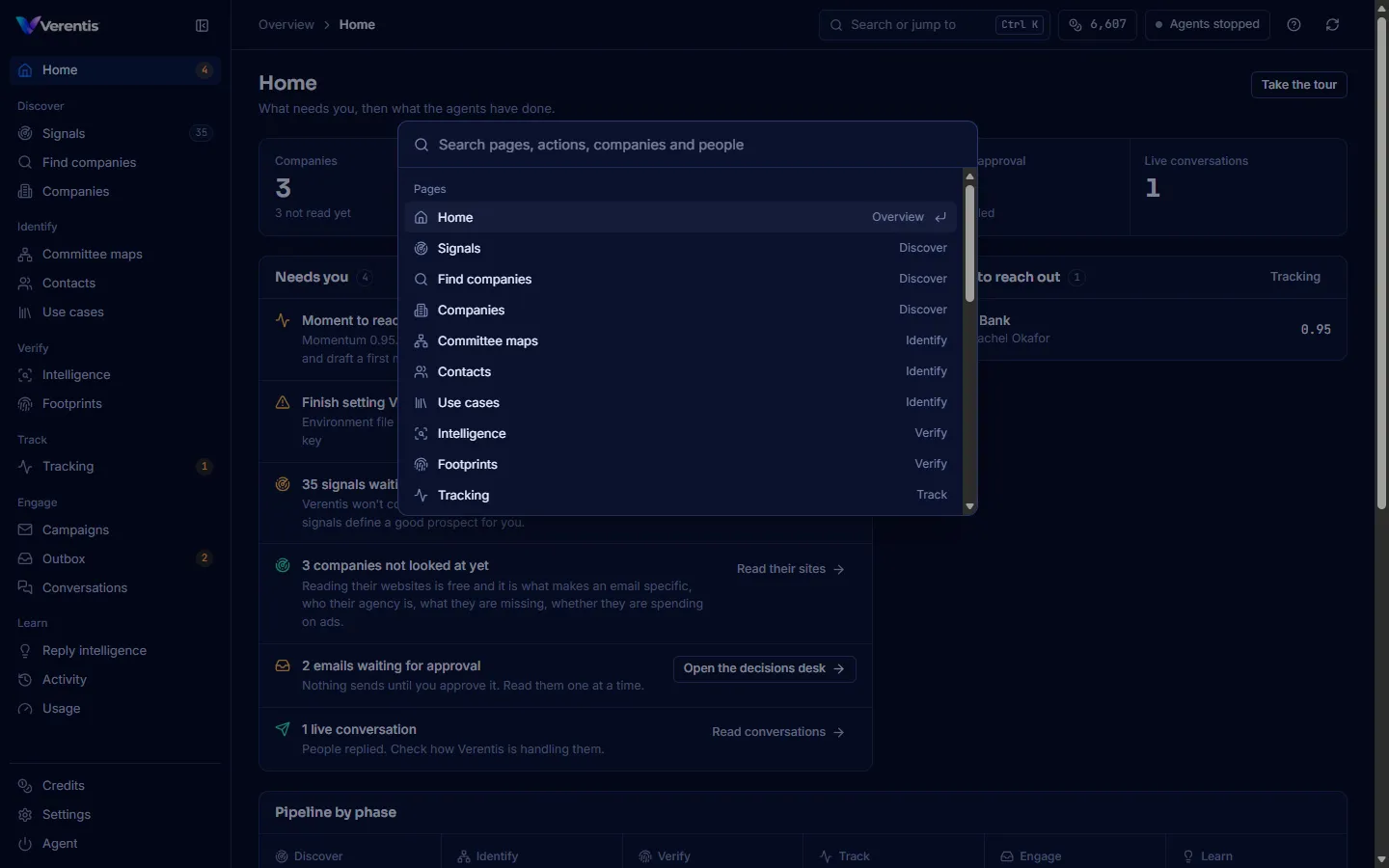
Type to search:
- Pages: every page in the sidebar.
- Actions: Investigate a person, Map an account for a use case, Check tracking now, Start the tour, switch appearance, refresh data, start or stop the agents.
- Companies and people: open their detail panel directly.
Use the arrow keys to move, Enter to choose, and Esc to close.
The top bar
Section titled “The top bar”From left to right:
- Breadcrumbs: the phase and the page you are on.
- Search or jump to: the command palette.
- Credits chip: available credits; amber when low. See Credits and the wallet.
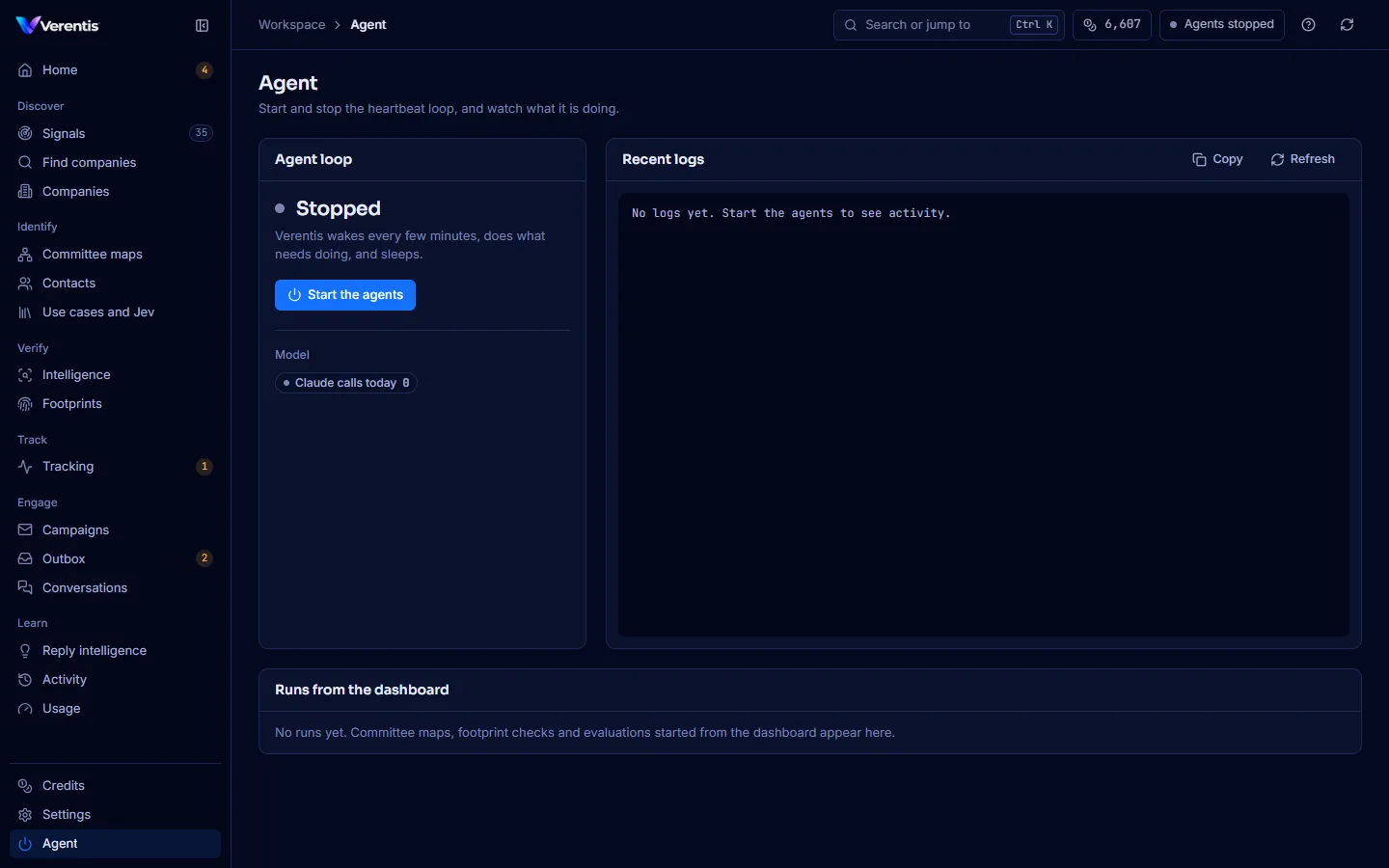
- Agent status: running or stopped. Click it to start or stop the agents, or view the logs.
- Help menu (question mark): start the tour, the command palette, setup and help, and light or dark appearance.
- Refresh: reload the data on the page.
The sidebar can be collapsed to icons with the button next to the logo.
The guided tour
Section titled “The guided tour”The tour walks through every page in order, highlighting what matters on each.
- Press Take the tour on Home, or choose Start the tour in the Help menu or the palette.
- Read each card and press Next. The tour opens each page for you.
- Press the cross, or Esc, to stop at any point.
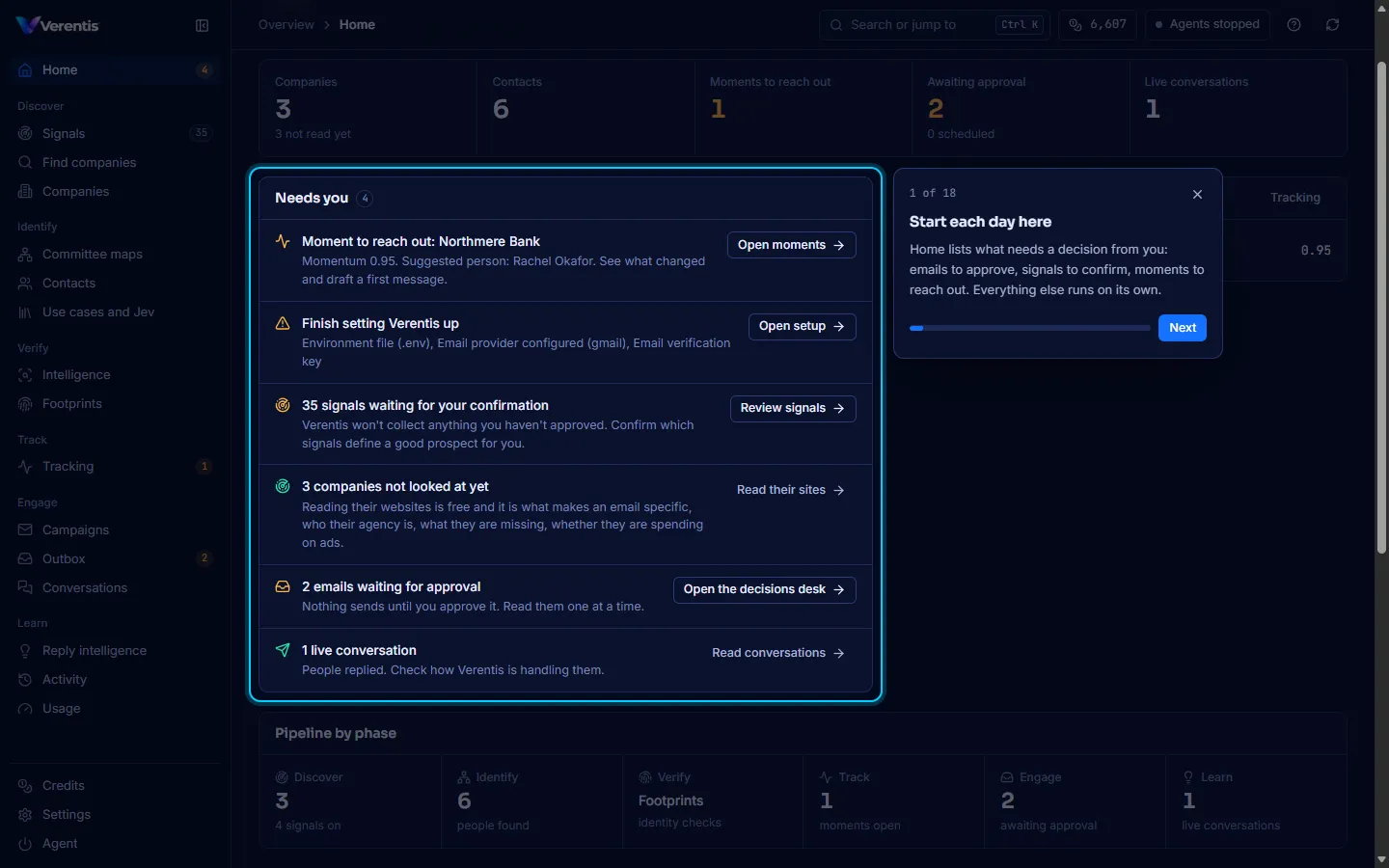
On your first visit, a small card offers the tour. Not now hides it; you can start the tour later from the Help menu.
Agent and logs
Section titled “Agent and logs”Agent (at the bottom of the sidebar) starts and stops the heartbeat loop and shows the recent log. Runs from the dashboard lists the committee maps, footprint checks and evaluations you started, their status and the credits each used.