

Superadmin console
The superadmin console is for the person who runs Verentis for others. It covers every workspace: balances, top-ups, prices, the ledger, provider accounts and an audit log of every admin action.
Open the console
Section titled “Open the console”The console has its own token, separate from the dashboard token. Neither token opens the other’s pages.
On a hosted server, sign in with an administrator account and choose Superadmin console in the Help menu. On your own computer:
-
Make sure the dashboard is running (
verentis dashboard). -
In a terminal, run:
Terminal window verentis admin --url -
Open the link it prints. It goes straight to the console.
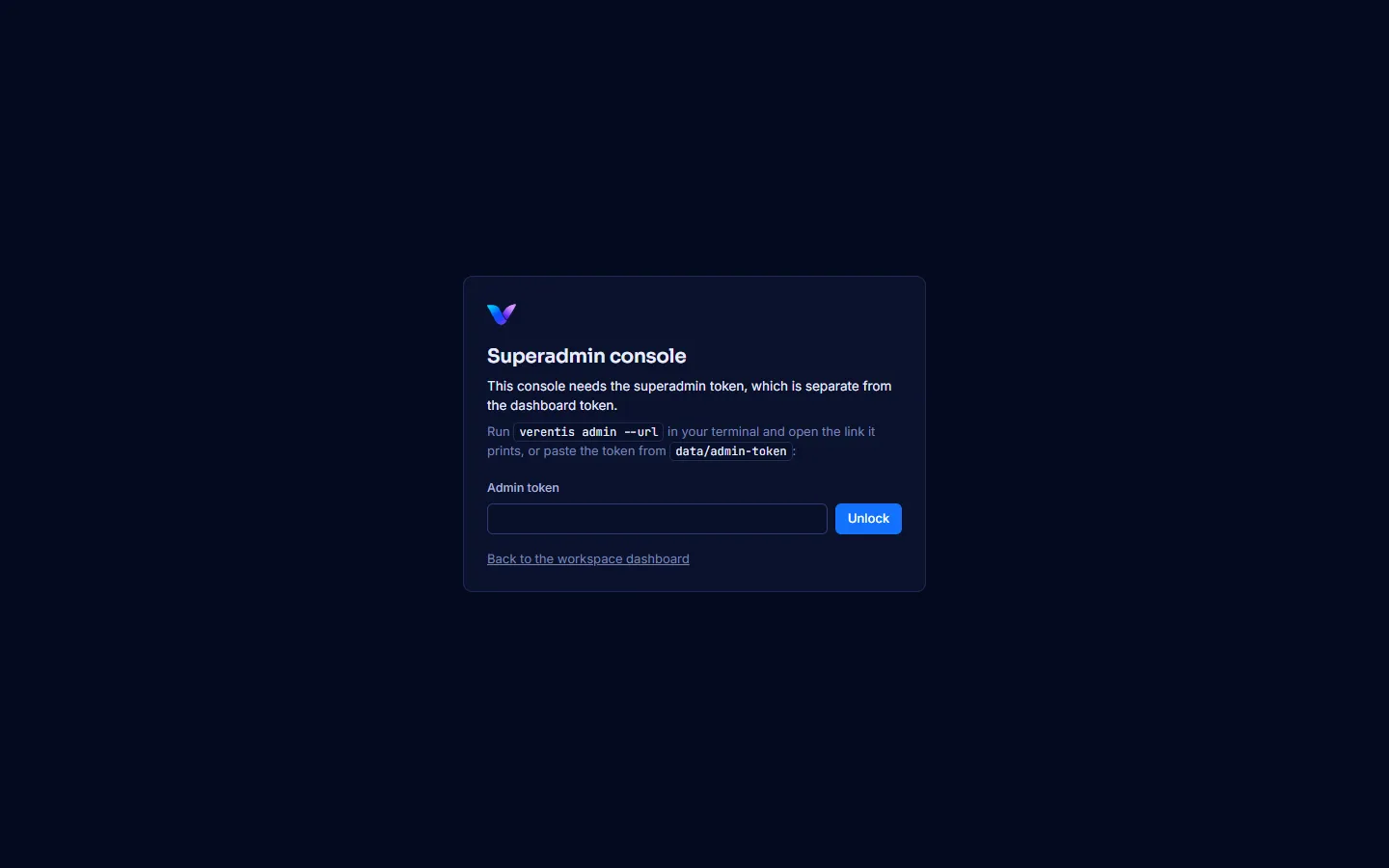
Without the admin token, the console shows a locked screen. Paste the token from data/admin-token, or open the link again.
Overview
Section titled “Overview”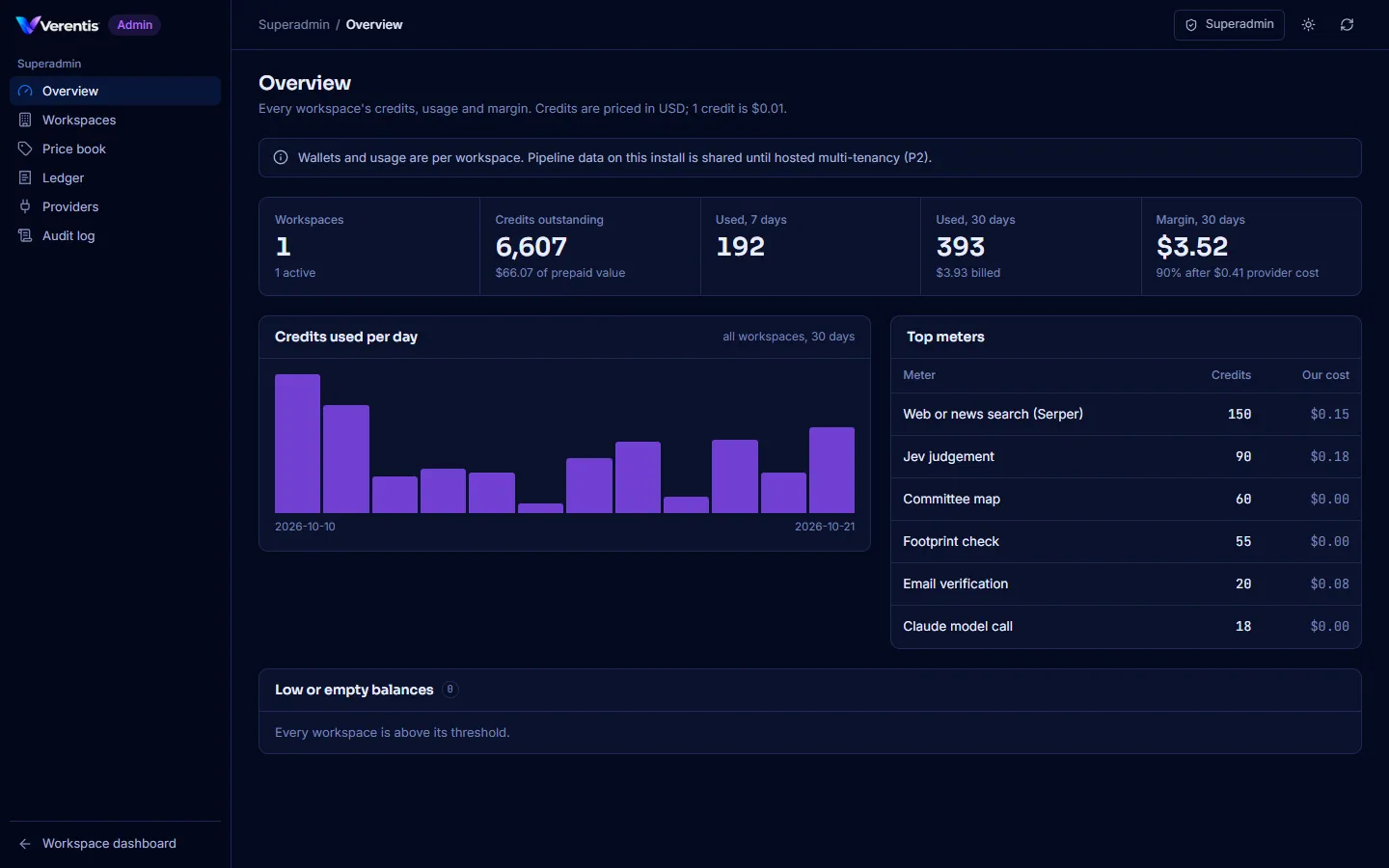
- Workspaces and how many are active.
- Credits outstanding: the prepaid value across all workspaces.
- Used, 7 days and Used, 30 days, with what was billed.
- Margin, 30 days: billed value minus what the providers cost us.
- Credits used per day, Top meters, and Low or empty balances.
Workspaces
Section titled “Workspaces”- Open Workspaces. The table shows each workspace’s plan, status, available credits, usage and last activity.
- To add one, press New workspace, enter a Name, Plan and Welcome credits, then press Create.
- Select a workspace to open its panel.
Add credits
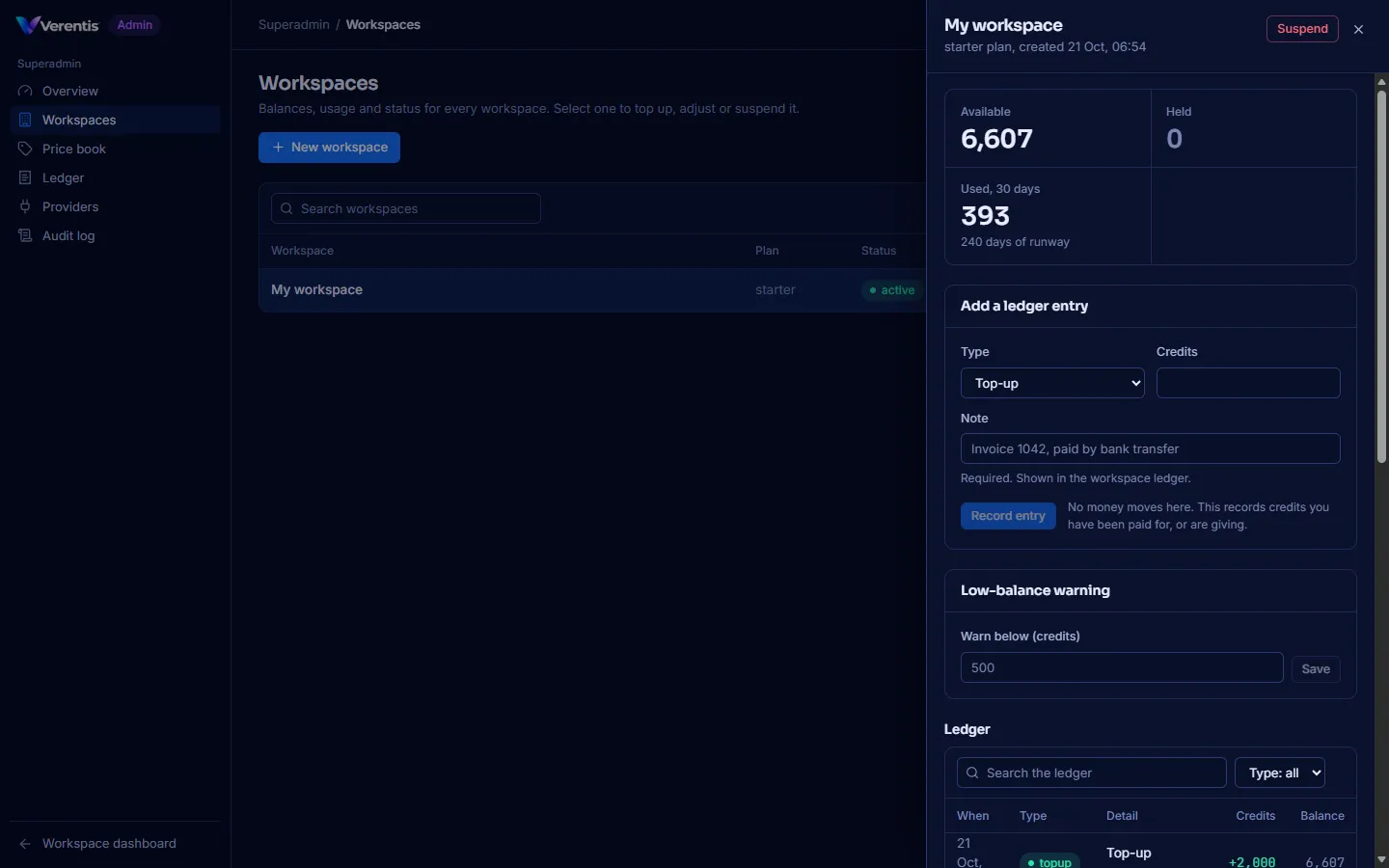
Section titled “Add credits”- In the workspace panel, under Add a ledger entry, choose the Type:
- Top-up: credits the customer paid for.
- Grant: free credits (a trial, goodwill).
- Refund: credits returned.
- Adjustment: a correction. Only adjustments can be negative.
- Enter the Credits and a Note (required, for example “Invoice 1042, paid by bank transfer”).
- Press Record.
No money moves in the app. The ledger is append-only: a mistake is corrected with a new adjustment, never by editing an entry.
Other actions
Section titled “Other actions”- Suspend (top right of the panel) pauses all paid work in that workspace. Resume turns it back on.
- Low-balance warning: the balance below which the workspace sees an amber chip and a Home warning.
Jev judge
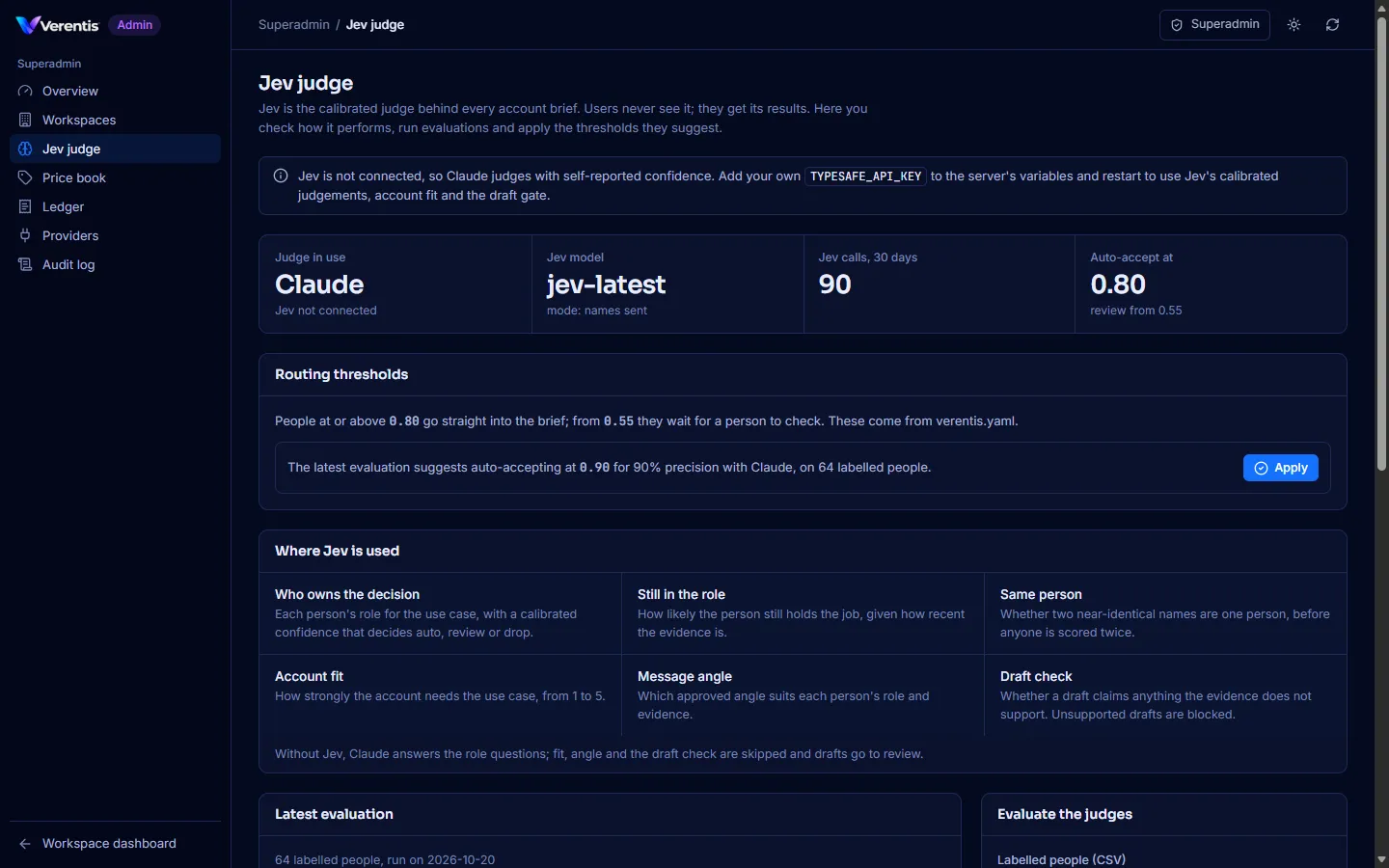
Section titled “Jev judge”Jev is the calibrated judge behind every brief. Workspace users never see its controls; they get its results. The Jev judge page is where you check it and tune it.
Connect Jev
Section titled “Connect Jev”- Get a TypeSafe API key that belongs to your own organisation.
- Add it as
TYPESAFE_API_KEY(in.envlocally, or in the server’s variables when hosted), then restart. - Judge in use changes to Jev. The key is never shown in the dashboard.
committee.jev_mode: roles in verentis.yaml replaces names with placeholders before anything is sent to Jev.
Where Jev is used
Section titled “Where Jev is used”| Decision | What Jev answers |
|---|---|
| Who owns the decision | Each person’s role, with a calibrated confidence that routes them to the brief, to review, or off it |
| Still in the role | How likely they still hold the job |
| Same person | Whether two near-identical names are one person |
| Account fit | How strongly the account needs the use case (1 to 5) |
| Message angle | Which approved angle suits each person |
| Draft check | Whether a draft claims anything the evidence does not support |
Evaluate and tune it
Section titled “Evaluate and tune it”Thresholds should come from your own data, not a guess.
-
Prepare a CSV of people your team has already labelled, with this header:
account,use_case,name,title,label,evidencelabelisowner,economic_buyer,influencer,champion,blockerornot_relevant.evidenceis one or more snippets separated by||. -
Under Evaluate the judges, choose the file and the judge (Jev and Claude, Jev only or Claude only), then press Price and run and confirm.
-
Latest evaluation shows each judge’s accuracy, precision as the threshold rises, and precision and recall per role.
-
Under Routing thresholds, the suggestion is the lowest threshold that reaches 90% precision for the judge in use. With at least 50 labelled people, press Apply. New briefs use it straight away, and the change is recorded in the audit log.
-
Use verentis.yaml goes back to the configured thresholds.
Price book
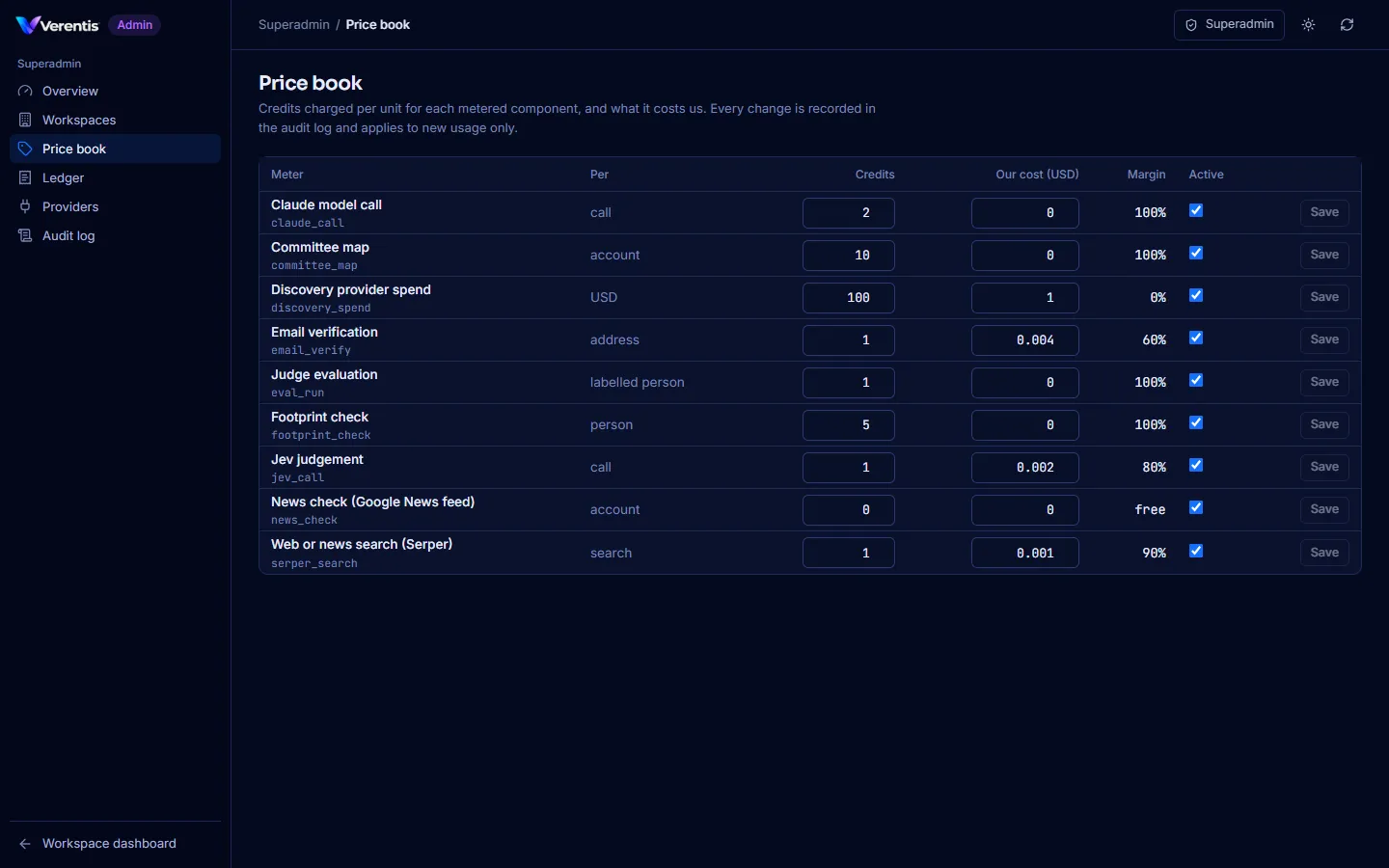
Section titled “Price book”Price book lists every meter with its Credits per unit, Our cost (USD) and the resulting Margin. Change a value, then press Save on that row. Changes apply to new usage only and are recorded in the audit log. Untick Active to stop charging for a meter.
Ledger, providers and audit
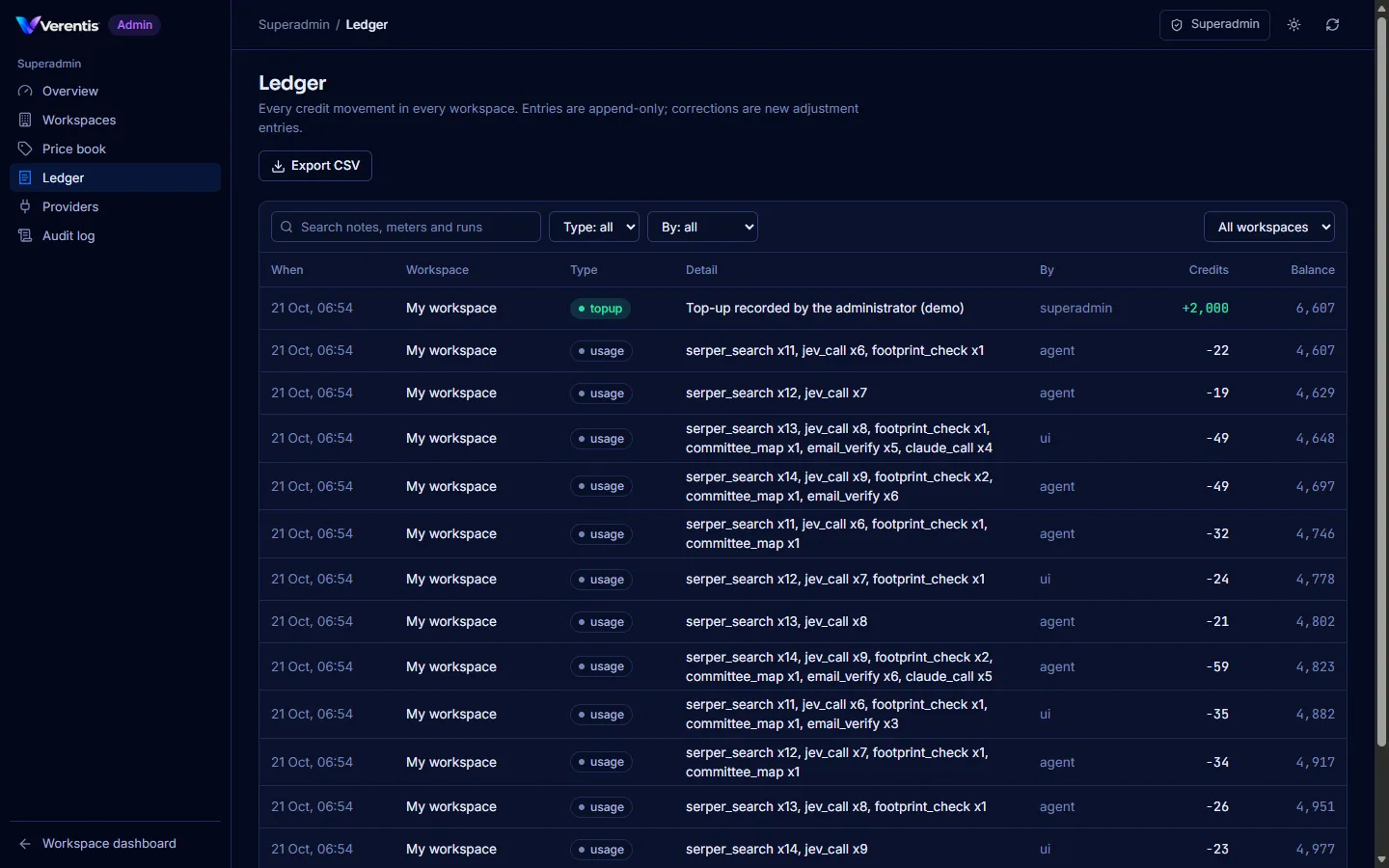
Section titled “Ledger, providers and audit”- Ledger: every credit movement in every workspace. Filter by workspace, search notes and runs, and press Export CSV.
- Providers: what is left on the platform’s provider accounts, as on the Credits page.
- Audit log: every superadmin action, with what changed.
Workspace dashboard at the bottom of the sidebar takes you back to the normal dashboard (which needs the dashboard token).