

Install and first run
Verentis runs on your own computer. Your data stays in the project folder, and the only services it talks to are the ones you connect.
What you need
Section titled “What you need”- Python 3.11 or newer. Check with
python --version. - A Claude Pro or Max subscription, with the Claude CLI logged in (
claude login). Verentis thinks with your subscription, so there is no per-token bill. A ChatGPT plan through the Codex CLI also works on macOS and Linux. - A mailbox to send from. Google Workspace or Microsoft 365 on a separate sending domain is best. See Connect email and a verifier.
1. Install
Section titled “1. Install”Open a terminal in the verentis-app folder and run:
python -m venv .venvsource .venv/bin/activate # Windows: .venv\Scripts\activatepip install -e .cp .env.example .env # Windows: copy .env.example .envEvery variable in .env is documented inline, with where to get it. You can also fill most of them in from the dashboard later.
2. Teach Verentis your product
Section titled “2. Teach Verentis your product”verentis train https://your-company.comVerentis reads your website and writes verentis.yaml (who you are and who you sell to) plus skills/product_knowledge.md and skills/competitive_intel.md. Open them and correct anything that is wrong: these files shape every email.
3. Open the dashboard
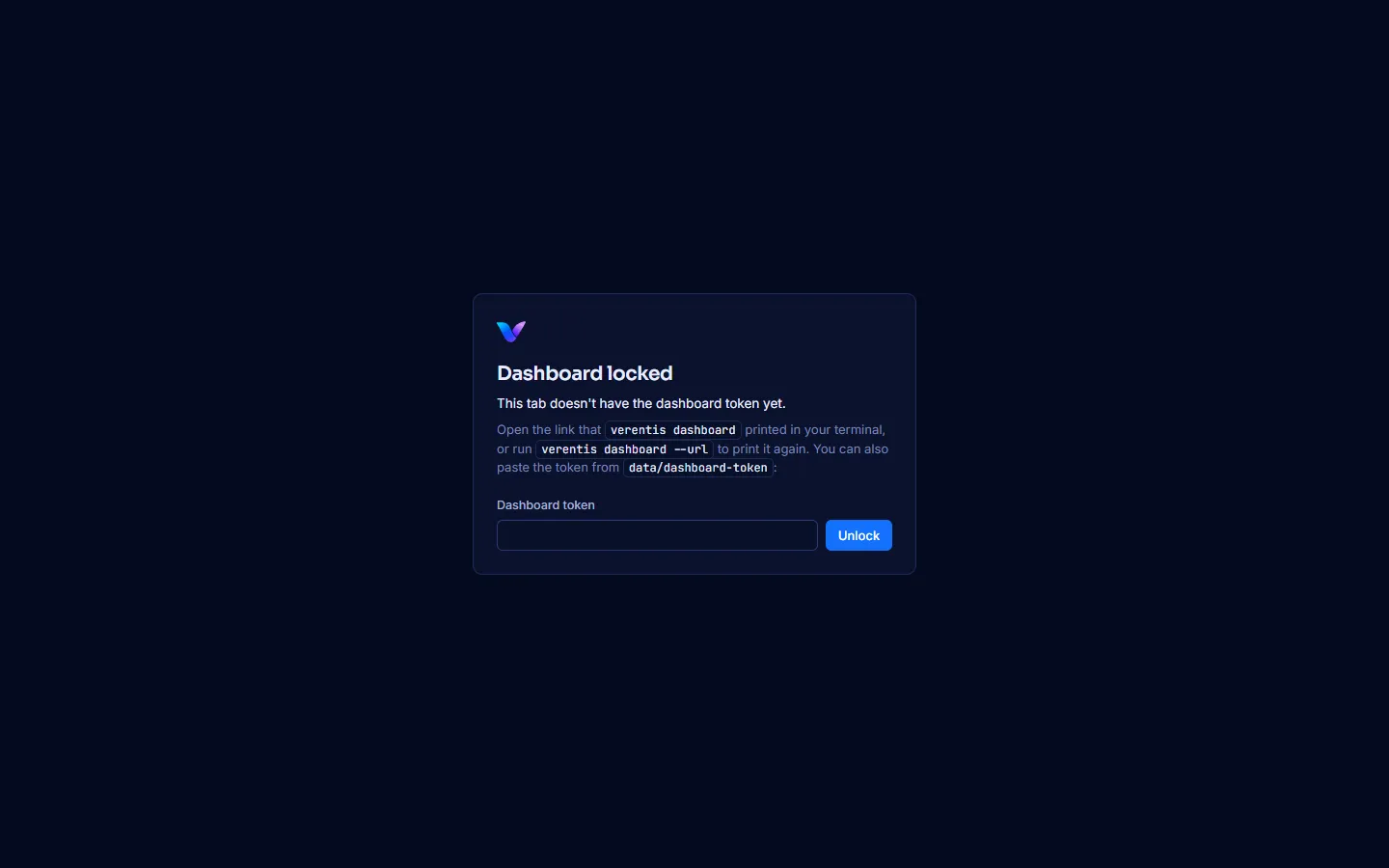
Section titled “3. Open the dashboard”verentis dashboardIt prints a private link such as http://127.0.0.1:5555/#token=.... Open that link. The token after the # unlocks the dashboard for that browser tab only and is removed from the address bar straight away.
- To print the link again, run
verentis dashboard --url. - A new tab without the link shows a locked screen. Paste the token there, or open the link again.
4. Finish the setup checklist
Section titled “4. Finish the setup checklist”The Home page lists everything that needs you. The first item is Finish setting Verentis up, which names what is still missing.
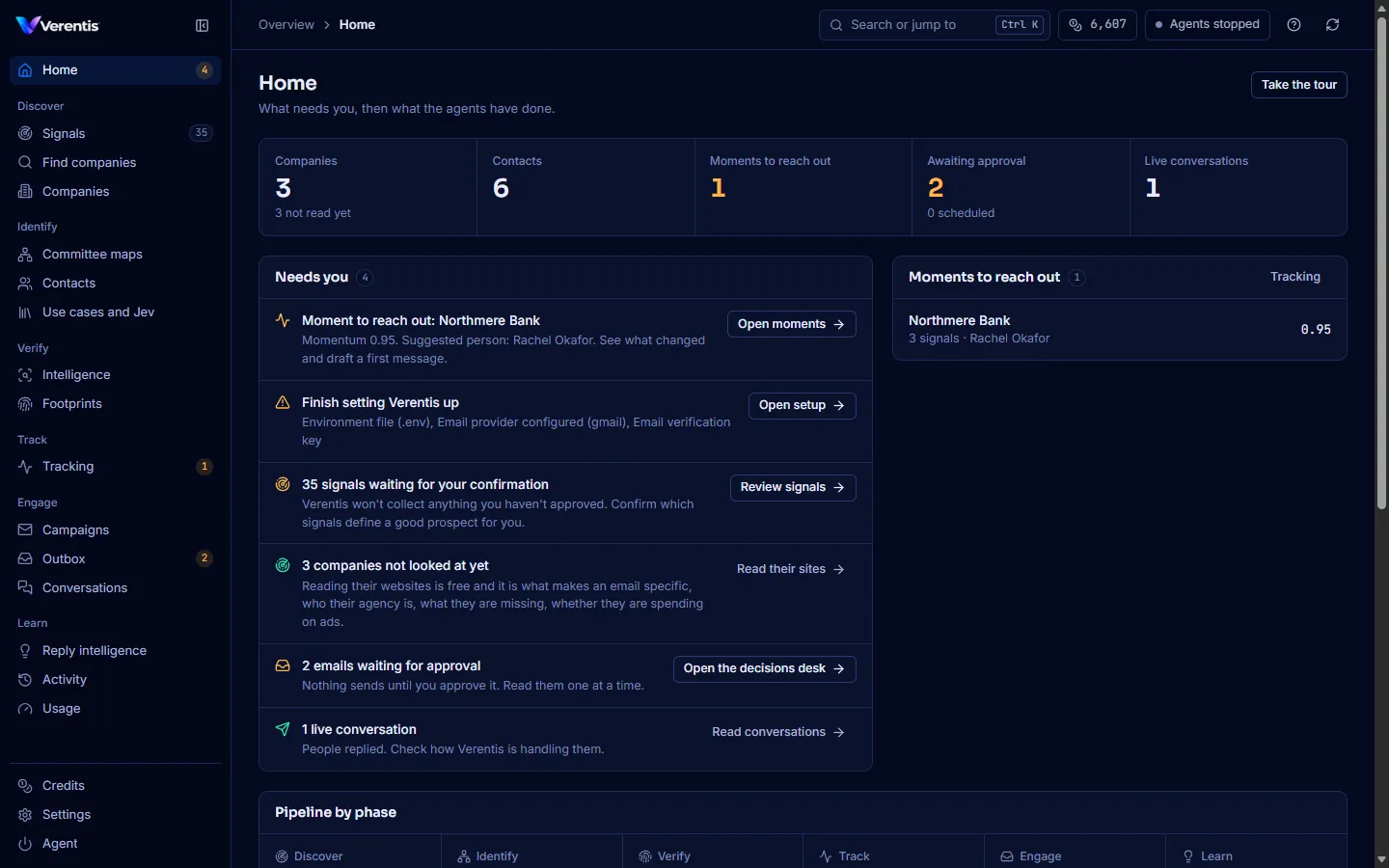
Work through it in this order:
- Settings, Email provider: connect Gmail, Microsoft 365 or SMTP. See Connect email and a verifier.
- Settings, Email verification: add at least one verifier key so found addresses can be checked.
- Signals: confirm what Verentis may collect. See Confirm signals.
- Agent: press Start the agents, or run
verentis runin a terminal.
Each item disappears from Home once it is done.
5. Take the tour
Section titled “5. Take the tour”Press Take the tour on Home, or open the Help menu (the question mark at the top right) and choose Start the tour. It walks through every page in about two minutes. See Search, shortcuts and the tour.