

Intelligence and footprints
The Intelligence centre has two views: Investigate a person, which checks one person across professional sites as you watch, and Account connections, which draws everything Verentis knows about an account as one graph.
Investigate a person
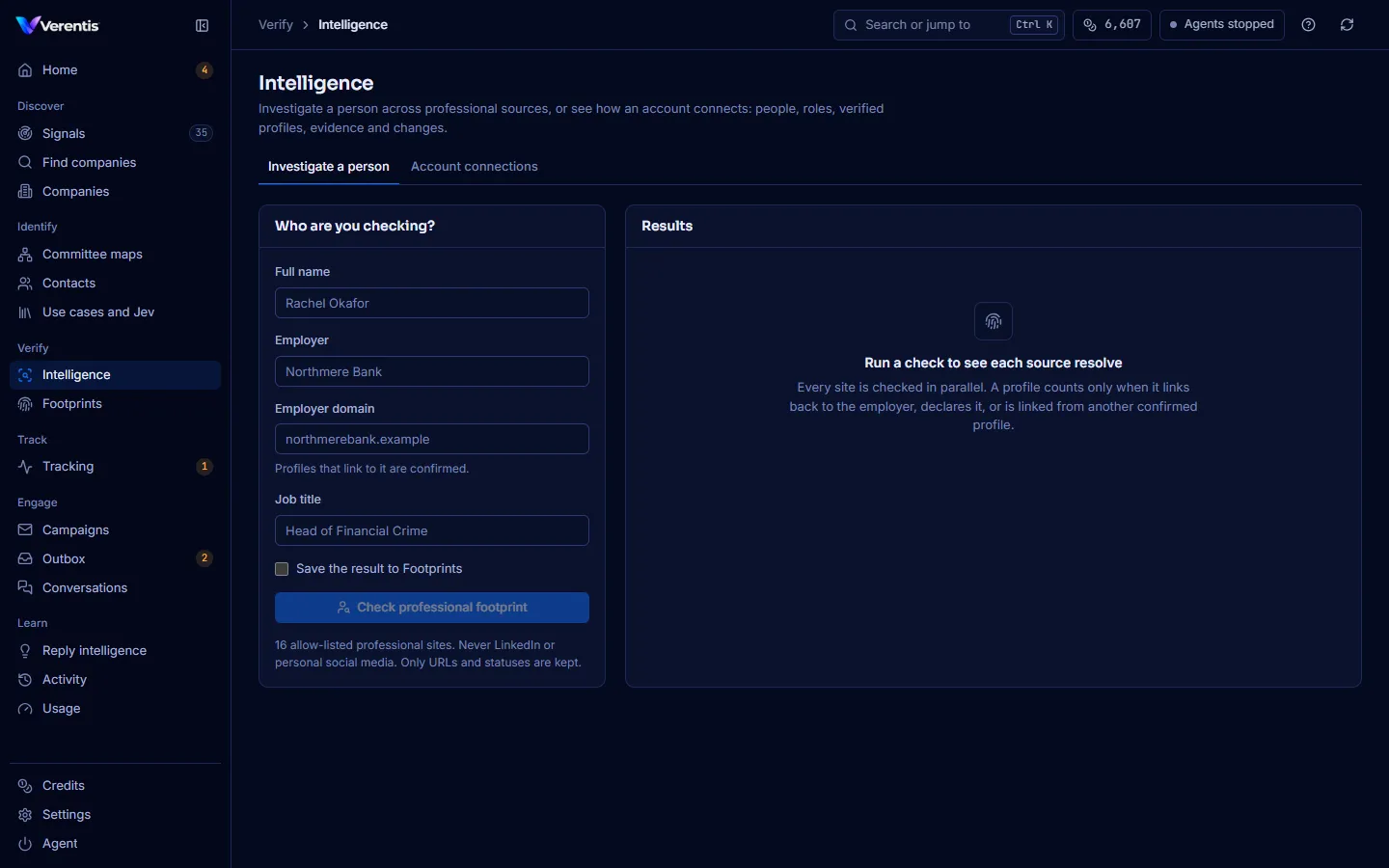
Section titled “Investigate a person”- Open Intelligence (under Verify).
- On Investigate a person, fill in Full name, Employer, Employer domain and, if you know it, Job title.
- Tick Save the result to Footprints if you want to keep it.
- Press Check professional footprint, check the credit estimate, and confirm.
- Each source appears in the results grid and resolves as its check finishes. The identity confidence meter rises as profiles are confirmed.
What the statuses mean
Section titled “What the statuses mean”| Status | Meaning |
|---|---|
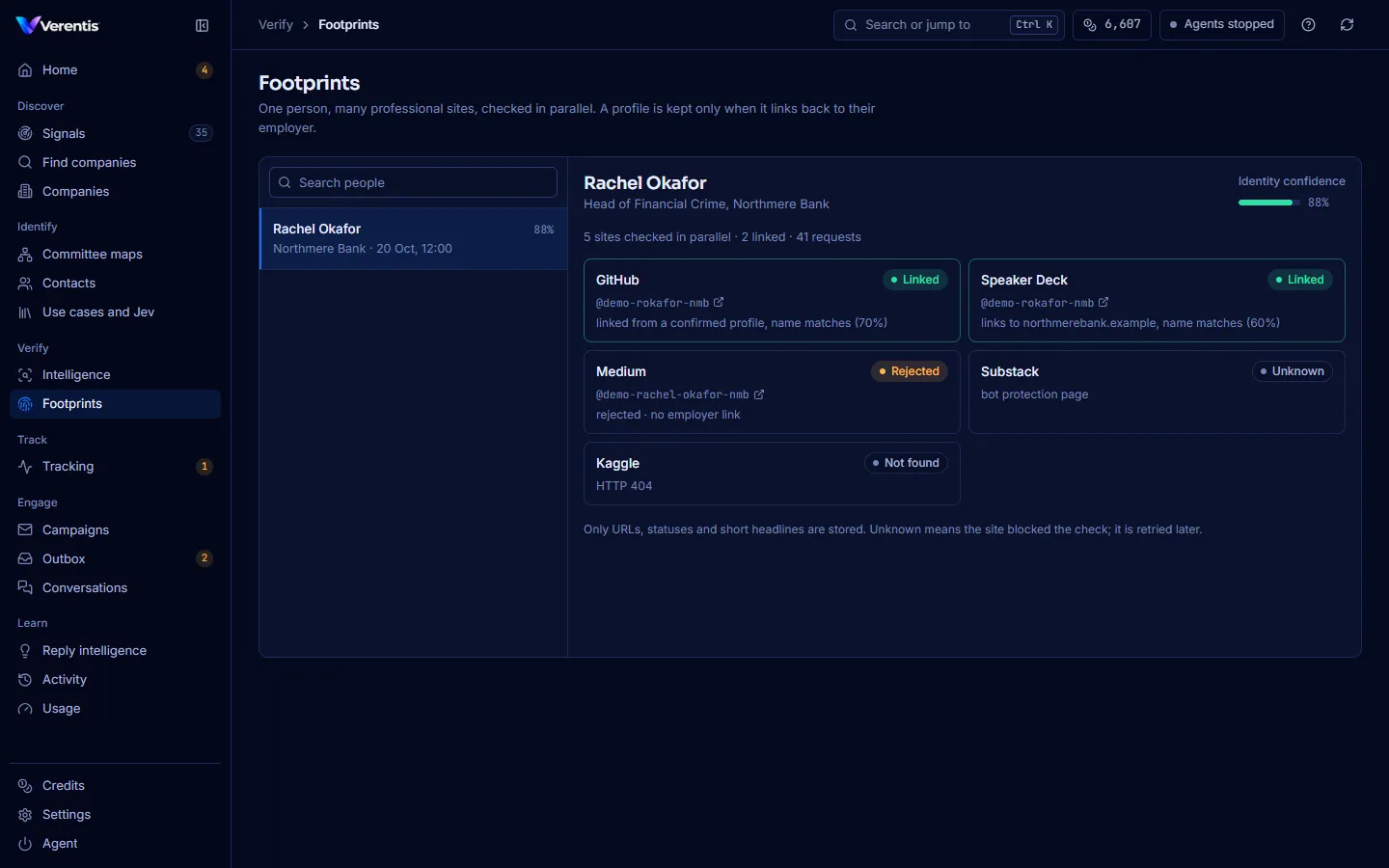
| Linked | A profile exists and is tied to the person: it links to the employer domain, declares the employer, or is linked from another confirmed profile. |
| Rejected | A profile exists with a matching name, but nothing ties it to this person. It is not kept. |
| Not found | No profile under any handle tried. |
| Unknown | The site blocked the check. It is retried later. |
Presence is not identity. A matching username alone never counts.
Saved checks: Footprints
Section titled “Saved checks: Footprints”Footprints lists every saved check. Select a person to see each source, why it was linked or rejected, and the identity confidence.
Account connections
Section titled “Account connections”- On Intelligence, open Account connections.
- Choose an account on the left.
- The graph puts the account in the centre, the committee around it (grouped by role), and each person’s verified profiles, evidence and recent changes on the outer ring.
- Hover over a node to highlight what it connects to. Click a person or the account to open its detail panel, or a profile to open the page.
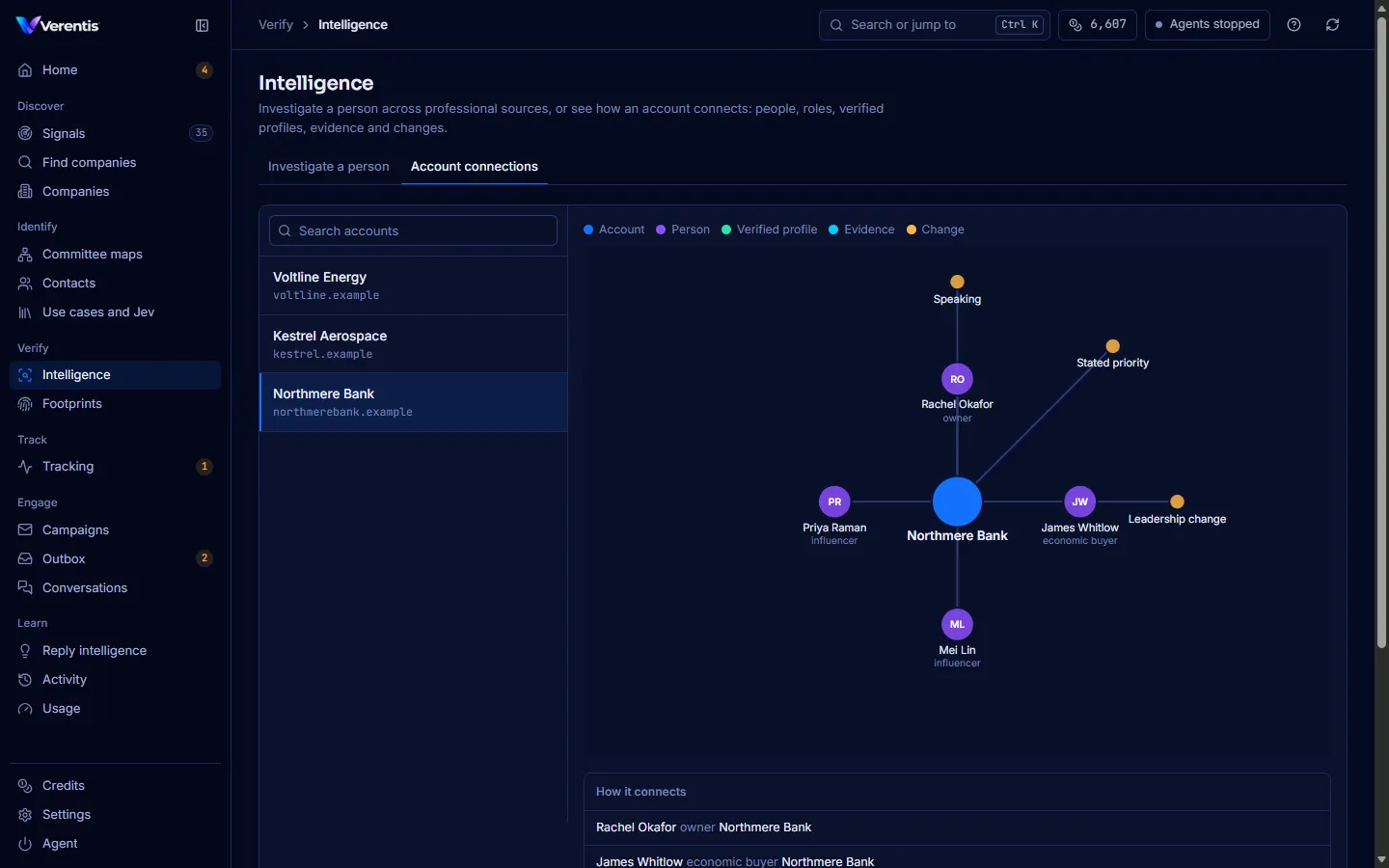
The legend shows what each colour means. How it connects under the graph lists every link in words, for example “Rachel Okafor, owner, Northmere Bank”.
From the terminal
Section titled “From the terminal”verentis verify "Rachel Okafor" --company "Northmere Bank" --domain northmerebank.exampleverentis verify --selftest # check every source's detection rulesverentis map <domain> --use-case "..." --verify